ProductDeadlines and calendar
Every deadline, with the work planned backward.
Each application or bid you pursue gets milestones counted back from its deadline. You approve the schedule, and it goes on one calendar you can subscribe to from your own.
The demo runs on a fictional organization and recorded runs. No sign-up.
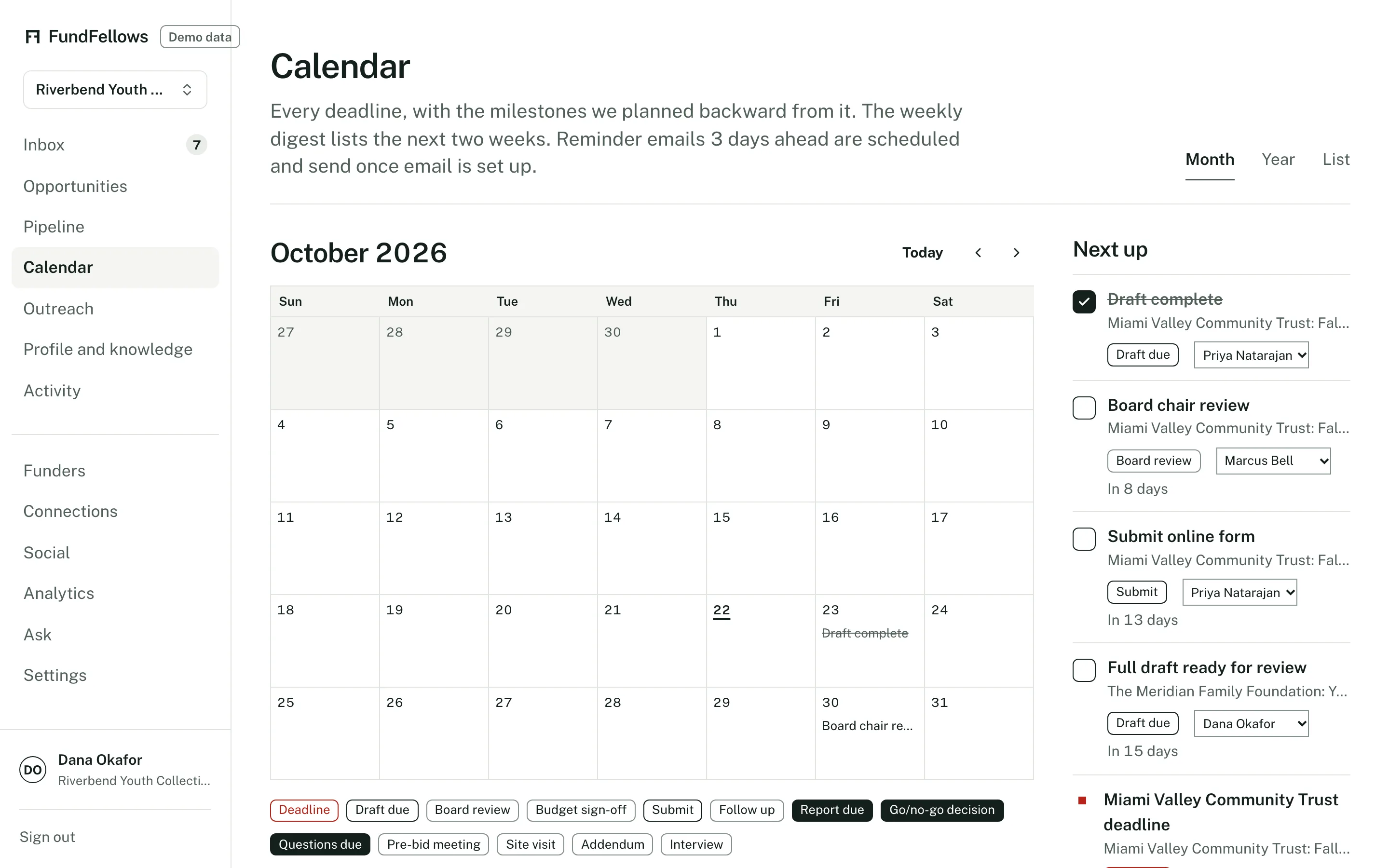
The calendar, on demo data. Deadlines and the milestones before them.
How it works, step by step.
The deadline comes from the source
When you save an opportunity, its deadline is taken from the notice, with the link. Rolling or unstated deadlines are shown that way, not given a made-up date.
Milestones counted back
It proposes dates for the steps before submission. For a grant: first draft, board review, budget sign-off, letters of support, submit. For a bid: go/no-go, questions to the contracting officer, draft, principal review, sign forms, submit. You can move any of them.
The schedule waits for you
The proposed schedule arrives in the Inbox. Nothing lands on the calendar until you approve it.
Addenda move the dates
When you add an addendum that changes a due date, the deadline moves, the milestones are replanned, and a note on what changed lands in your Inbox.
The month and the year
The calendar shows deadlines and milestones by month. The year plan shows when each funder's cycle falls, so a busy spring is visible in January.
On the calendar you already use
Subscribe to a private calendar feed from Apple Calendar, Outlook, or Google Calendar, or connect Google Calendar to push events to a calendar you choose.
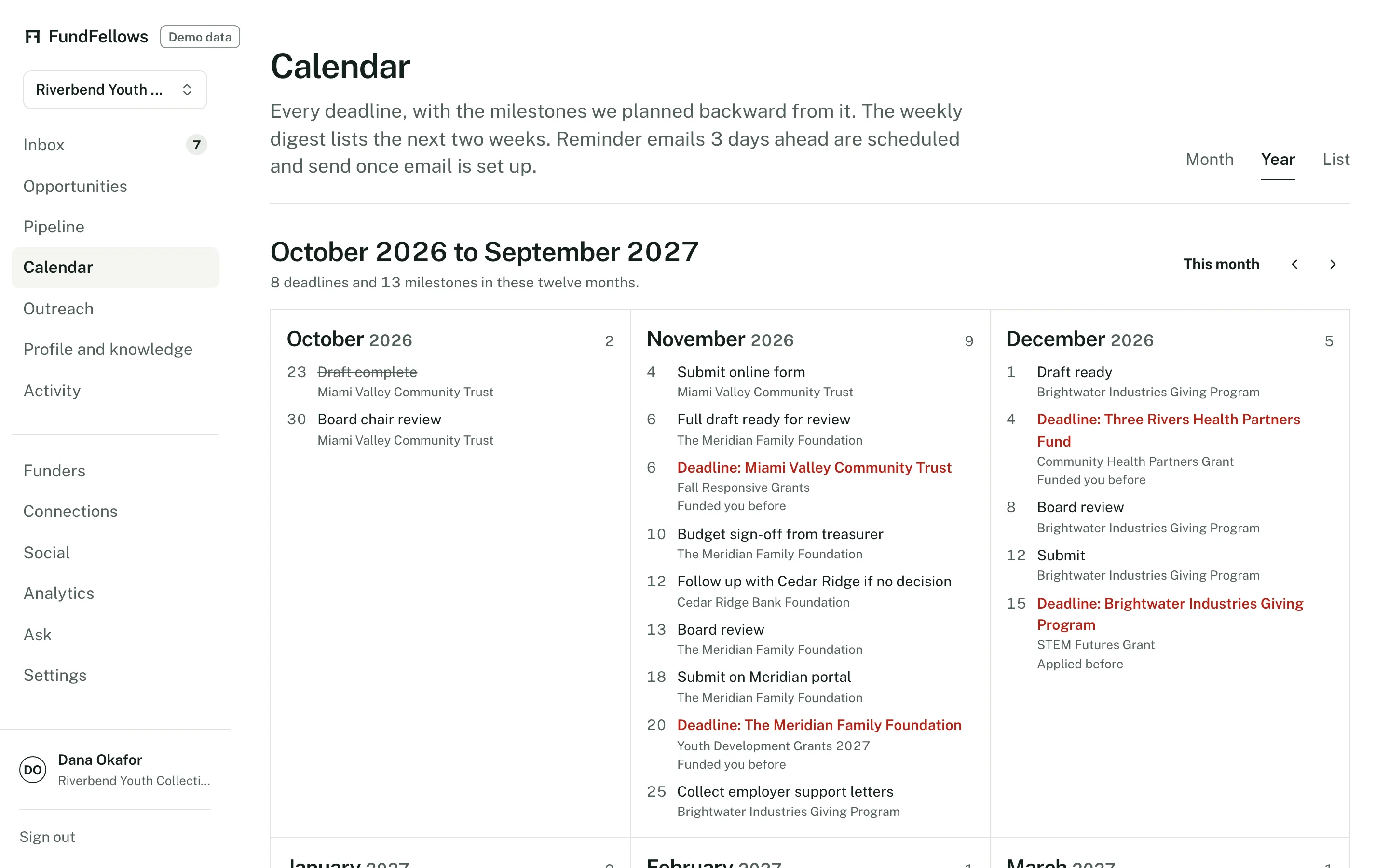
The year plan: which funders come due in which months.
The specifics
- Calendar feed
- A private ICS link that any calendar app able to subscribe to a URL can show. How often it refreshes depends on your calendar app.
- Google Calendar
- A direct push to a calendar you choose, once you connect your Google account. It is not connected in the demo.
- Weekly digest
- An email with new matches and the next two weeks of deadlines. You can turn it off.
- Reminder emails
- A reminder a few days before each milestone, on the schedule in your notification settings. You can turn them off.
What it will never do
- Put a date on your calendar before you approve the schedule.
- Invent a deadline. Each one comes from the notice, with its link.
- Submit anything when a deadline arrives.
- Write to your Google Calendar unless you connect it.
The rest of the product
Or follow one application from start to finish on how it works.
- MatchingGrants, public bids, research funding, foundations, and scholarships from official sources, each scored against your records with reasons you can check.
- Drafting with sourcesLetters, proposals, bid responses, and essays where every claim cites your own records, and every missing fact becomes a question for you.
- OutreachDrafts of the emails around an application, from a question before you apply to a thank-you after. You send each one yourself.
- ConnectionsBoard and contact import, overlap with foundation trustees from 990-PF filings, peer organizations that share your funders, and intro request drafts.
- Win analyticsPatterns in your own logged outcomes: by funder or client, sector, and size. Plain about how little a few outcomes can show.
See it on a sample organization.
Free to start, with no card.
The demo runs on a fictional organization and recorded runs. No sign-up.